
Wedding RSVP QR Code Guide: Where to Put It and How to Test It
Learn how to use a wedding RSVP QR code on paper and digital invitations, choose a reliable destination, test the scan, and give guests a backup link.
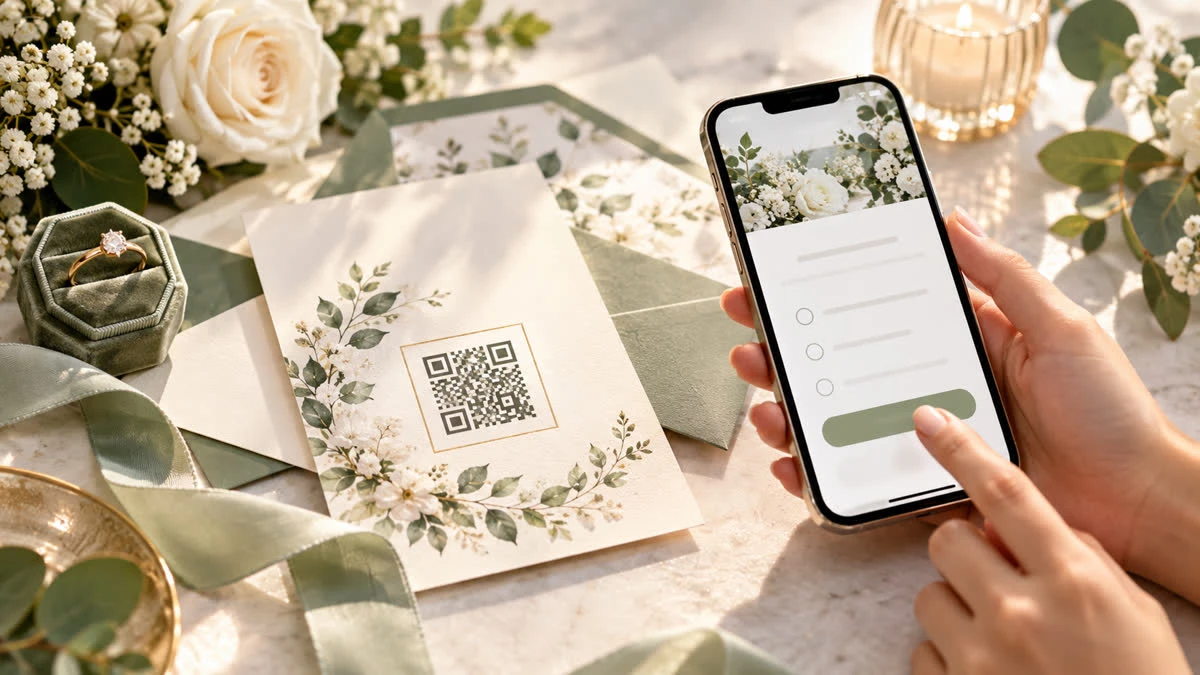
A wedding RSVP QR code gives guests a fast bridge from a printed invitation to an online response. Instead of typing a long URL, a guest points a phone camera at the code, opens the wedding page, and submits the requested details. The setup is simple, but small choices determine whether the experience feels polished or frustrating.
This guide explains where to place the code, what it should open, how to test it before printing, and why a QR code should support—not replace—a clear RSVP link.
What should the wedding RSVP QR code open?
Send the scan directly to the wedding event page or RSVP form, not to a generic home page where guests must search. The destination should show the couple’s names, date, location, key travel details, and response button in a mobile-friendly layout.
A dedicated wedding RSVP website is useful because it can combine the form with information guests need before answering. If your guest list includes meal choices, a plus-one policy, ceremony and reception details, or a weekend schedule, put those instructions beside the form so the response is informed.
Where to put the code on a paper invitation
The RSVP card is the most obvious location, but it is not the only option. You can place the code on:
The separate RSVP card, near the response instructions.
A details card that includes travel, dress, and venue information.
The back of the invitation when the design has enough quiet space.
A save-the-date insert if guests can respond before the formal invitation.
A small reception or welcome card for late-arriving event information.
Give the code breathing room. Do not crowd it with borders, patterns, or tiny text. Add a short label such as “Scan to RSVP” and print a readable fallback URL underneath. Guests should know what the code does before they scan it.
Choose a code that works in real conditions
Use strong contrast between the code and its background. Black on white is dependable, while pale colors, metallic ink, and busy photographs can reduce scan reliability. Keep the square shape intact and avoid stretching it during design export.
The code should be large enough to scan from a natural distance. A tiny code may work on a computer screen but fail on textured cardstock or in low light. Print one sample on the exact paper and finish you plan to use.
Use the SnapRSVP QR code generator to create the destination code, then download or place it in the invitation design according to your printer’s requirements. Keep the final QR image at a high enough resolution for crisp edges.
Test before you order invitations
Test the full guest journey, not just whether a camera recognizes the square. Scan with multiple phones and operating systems. Try the code in daylight, indoor light, and from the printed invitation. Then check that the page loads quickly and that the response form can be completed with one hand.
Scan the code from the final-size printed sample.
Confirm the destination URL and event details.
Submit a test response with a clearly marked test name.
Check that the response appears in the host dashboard.
Remove the test response or label it before the real launch.
Ask a friend who was not involved in setup to test it without coaching.
Do not change the destination after printing unless the QR code is dynamic or redirects through a page you control. If you are unsure whether the link can be updated, confirm the behavior before placing a large invitation order.
Always provide a backup option
Some guests will not scan QR codes, may receive a photocopy, or may be viewing the invitation on the same phone they would use to scan it. Print a short URL and explain that guests can type it into a browser. You can also include a host email or phone number for accessibility and troubleshooting.
The backup link should lead to the same destination as the code. Two different forms create duplicate responses and make it difficult to know which guest list is current.
Use the code beyond the invitation
A wedding RSVP QR code can also appear on a wedding website announcement, welcome sign, ceremony program, or email image. Keep the context clear so guests understand whether they are responding to the ceremony, reception, rehearsal event, or another part of the weekend.
Do not assume every scan equals a completed RSVP. Monitor the responses, compare them with the number of invitations sent, and follow up with guests who have not answered near the deadline. The code improves access; it does not eliminate normal guest-list management.
Common QR code mistakes to avoid
Linking to a home page instead of the RSVP form.
Printing a code too small or with low contrast.
Omitting a human-readable URL.
Failing to test the actual printed invitation.
Using a form that requires guests to download an app.
Changing the URL after printing without testing old codes.
Before choosing a service, review the SnapRSVP pricing page and confirm the plan fits your guest count and information needs. The SnapRSVP FAQ can help answer common setup questions before the invitations go to print.
A QR code is a small part of the invitation, but it carries a large responsibility: it must take guests to the right place every time. Pair a clean, tested code with a readable fallback link and a focused mobile RSVP page, and the process will feel effortless for guests and manageable for the couple.