
QR Code on Wedding Invitations: How to Add an RSVP Link
Put a QR code on wedding invitation inserts so guests scan and RSVP in seconds. See setup steps, wording examples, and what to link.
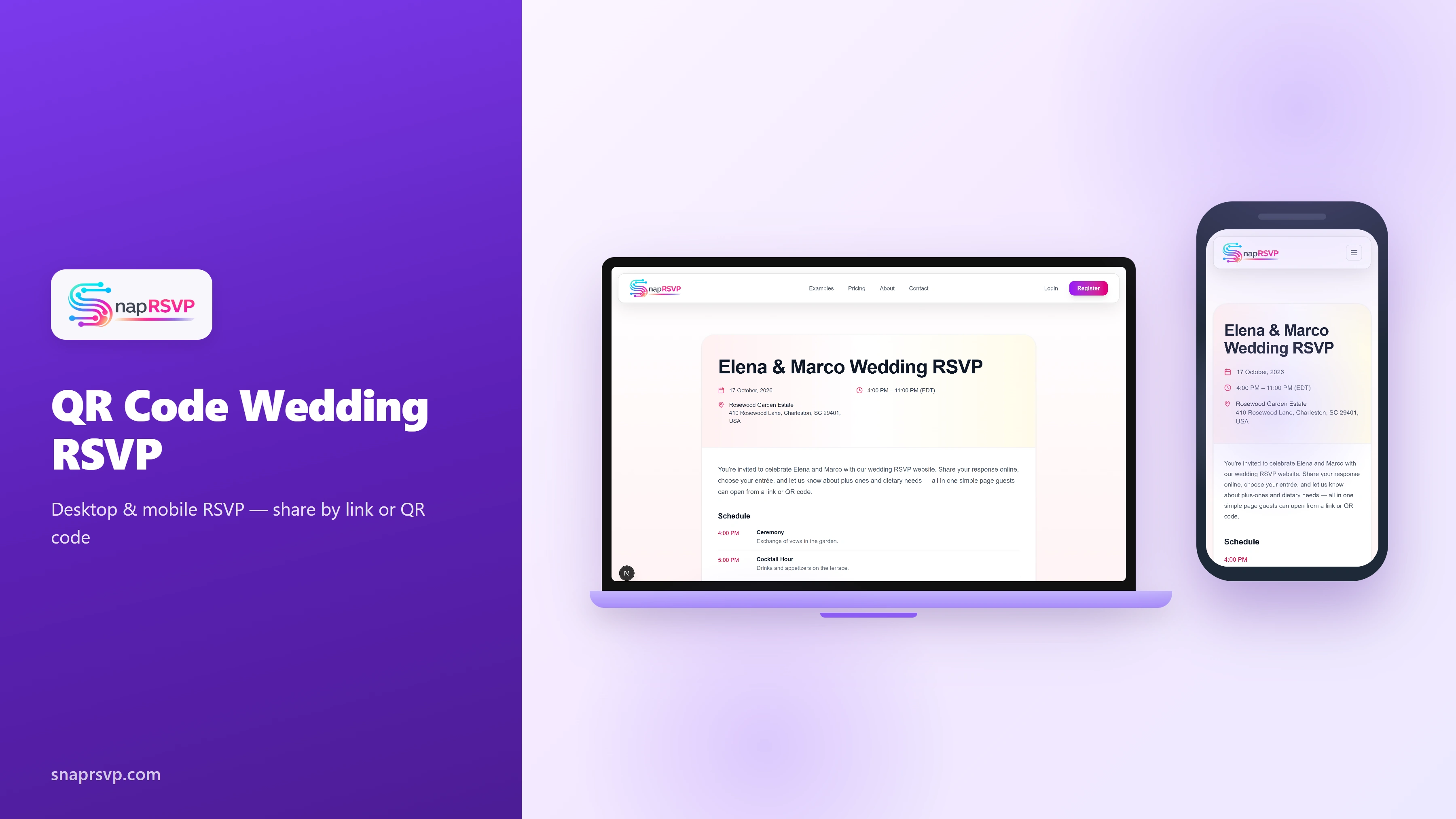
Put a QR code on wedding invitation inserts so guests scan and RSVP in seconds. See setup steps, wording examples, and what to link.
Where to place the QR code
Keep your main invitation card clean. Print the QR code on a separate RSVP or details card so guests know exactly what to scan.
Always print the full URL below the code for guests who prefer typing.
Print the full URL under any QR code on paper inserts. Some guests use office printers, older phones, or PDF zoom instead of scanning, and the plain link saves responses you would otherwise lose.
What the QR code should link to
Link directly to your RSVP page — not your homepage. Guests should land on the guest response form in one tap.
Print the full URL under any QR code on paper inserts. Some guests use office printers, older phones, or PDF zoom instead of scanning, and the plain link saves responses you would otherwise lose.
Before you send the qr code on wedding invitations link widely, ask one guest from each age group to complete a test RSVP. Their feedback on confusing labels or missing context is cheaper than fixing problems after half your list has already replied.
RSVP wording to print beside the code
Use a clear deadline: “Kindly scan to RSVP by [date].” Short, polite, and action-focused wording gets more responses.
Test your wording with two trusted friends before sending widely. A quick read-aloud check catches confusing deadlines, missing links, or tone that feels too formal for your crowd.
Save two approved reminder templates in your notes app—one warm nudge and one final close—so you are not rewriting messages under deadline pressure.
Share one link across every channel
Point paper invitations, texts, emails, and your wedding website to the same RSVP URL. When guests see one consistent destination, response rates improve and your dashboard stays accurate without manual merging.
If you use QR codes on inserts, print the full link beneath the code for guests who prefer typing. The extra line costs little in print and reduces drop-off from scanning issues.
Before you send the qr code on wedding invitations link widely, ask one guest from each age group to complete a test RSVP. Their feedback on confusing labels or missing context is cheaper than fixing problems after half your list has already replied.
Keep mobile guests in mind
Most wedding guests RSVP from a phone between errands, work, and travel planning. Large tap targets, short required fields, and no account signup keep completion high across age groups.
Preview the page on mobile before sending invitations. A form that feels fast and obvious in that view usually outperforms a design that only looks polished on desktop.
Before you send the qr code on wedding invitations link widely, ask one guest from each age group to complete a test RSVP. Their feedback on confusing labels or missing context is cheaper than fixing problems after half your list has already replied.
Put your RSVP page live with SnapRSVP
When your questions and deadline are set, publish one mobile-friendly page guests can open from any phone. A focused RSVP flow keeps responses organized while you handle the rest of event planning.
SnapRSVP lets you share a link or QR code, collect answers in one place, and export vendor-ready lists without app downloads for guests. See a live example at /example/wedding-rsvp-website, or create your RSVP page when you are ready.